
Applies to: Trimble CFX-750 and FM-750 displays using FarmWorks (VS16) Write Job Data
The Issue
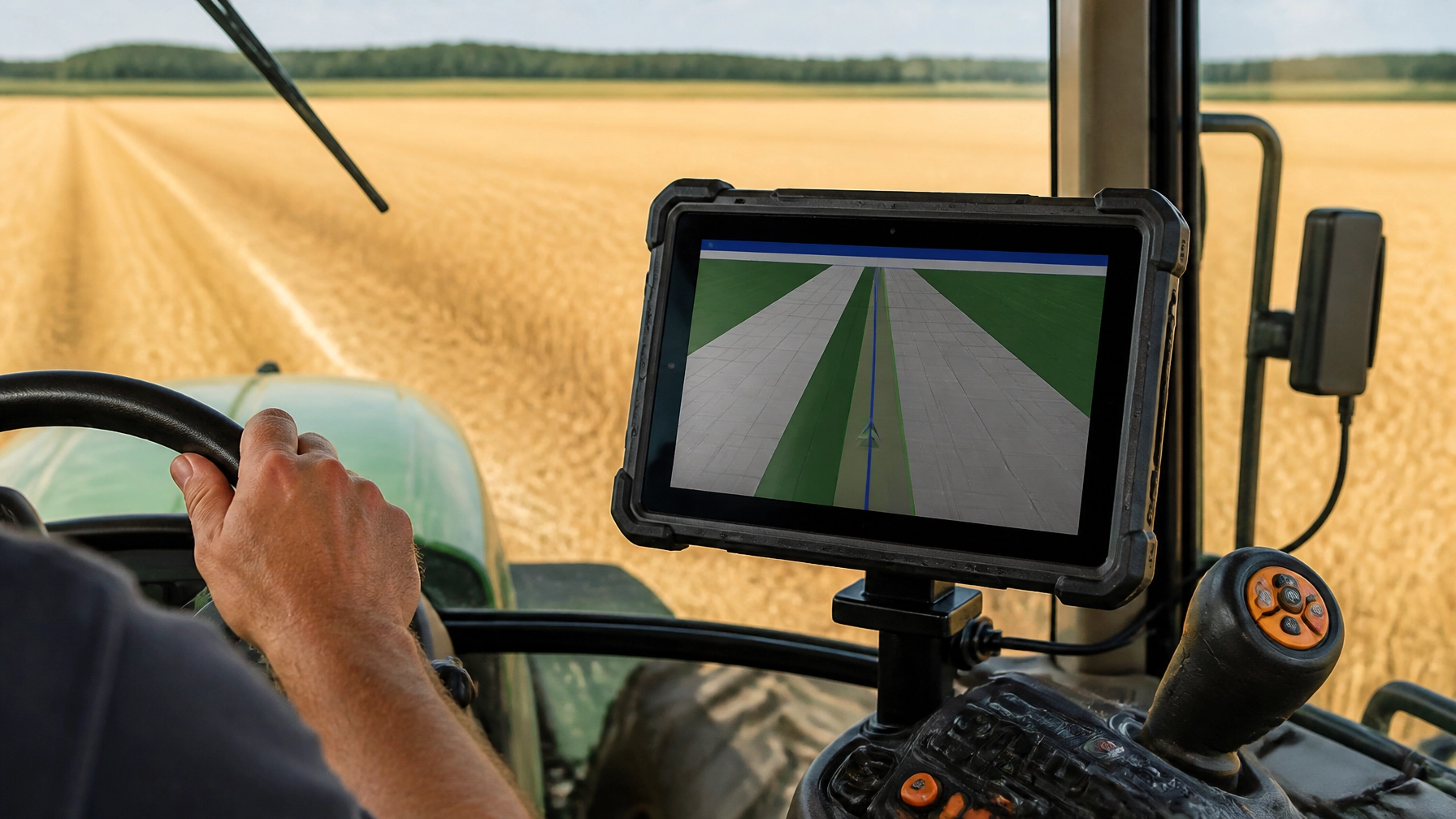
A customer exported feature points (rocks) from FarmWorks to a CFX-750 and found that the display guided them to each point, but no flag or marker appeared on the map.
In testing, the points were still fully functional on the display. The distance to the nearest point showed correctly, the display directed the operator to the point, and points could be deleted. The only thing missing was the visual marker on the map screen.
What We Found
- The behavior was reproduced in-house on multiple firmware versions, so this does not appear to be a firmware problem on the display.
- The issue appears to be on the FarmWorks side of the export.
- When the same points were imported into FarmEngage (Trimble’s online software) and then exported from FarmEngage to the CFX-750, all points displayed on the map as expected.
- Older display software can cause separate problems. The customer first loaded the points into a 750 running 2011 software, then moved to a unit running 2019 software, where guidance to the point worked.
The CFX-750 is the same hardware as the FM-750 and still works with the AgGPS folder platform.
Workaround
Until this is resolved, use FarmEngage as the middle step:
- Import the feature points into FarmEngage.
- Export from FarmEngage to the CFX-750 (USB stick).
- Load the data on the display. The points should now show as markers on the map.
If you need to proceed without markers, the display can still guide you to each point and show distance to the nearest one.
How to Create a Feature Layer in FarmWorks
- Click the red barn tab on the left.
- Open your client, then your farm, then your field.
- Right-click the field name and select Add Layer.
- Choose Feature Layers and add your points or area layer.
Trimble automatically sends feature layers (points and area layers) when you use Write Job Data. Points and rocks should be visible in FarmWorks once they are saved in the field from the main computer.
How to Find and Export the Feature Files from a USB Stick
If you wrote the job data to a USB stick:
- Open File Explorer.
- Open the drive letter for the USB stick.
- Open the AgGPS folder.
- Open the Data folder.
- Open the client folder, then the farm folder.
- Open the folder with the field name.
This is where the feature layers are stored. They are shapefiles, so each feature layer has three files: .SHP, .SHX, and .DBF. Keep all three together when sharing or attaching a layer to a support request.
Contacting Support
If you are seeing this behavior, please attach the exported feature files (the .SHP, .SHX and .DBF set) and tell us the display software version. We will update this bulletin if a fix becomes available.